Highlight your artists, rights holders or technical team thanks to the casting page!
To create a casting page on your platform, go to the “Casting” tab of the menu. You will find all created forms and can search, edit, delete or create new.
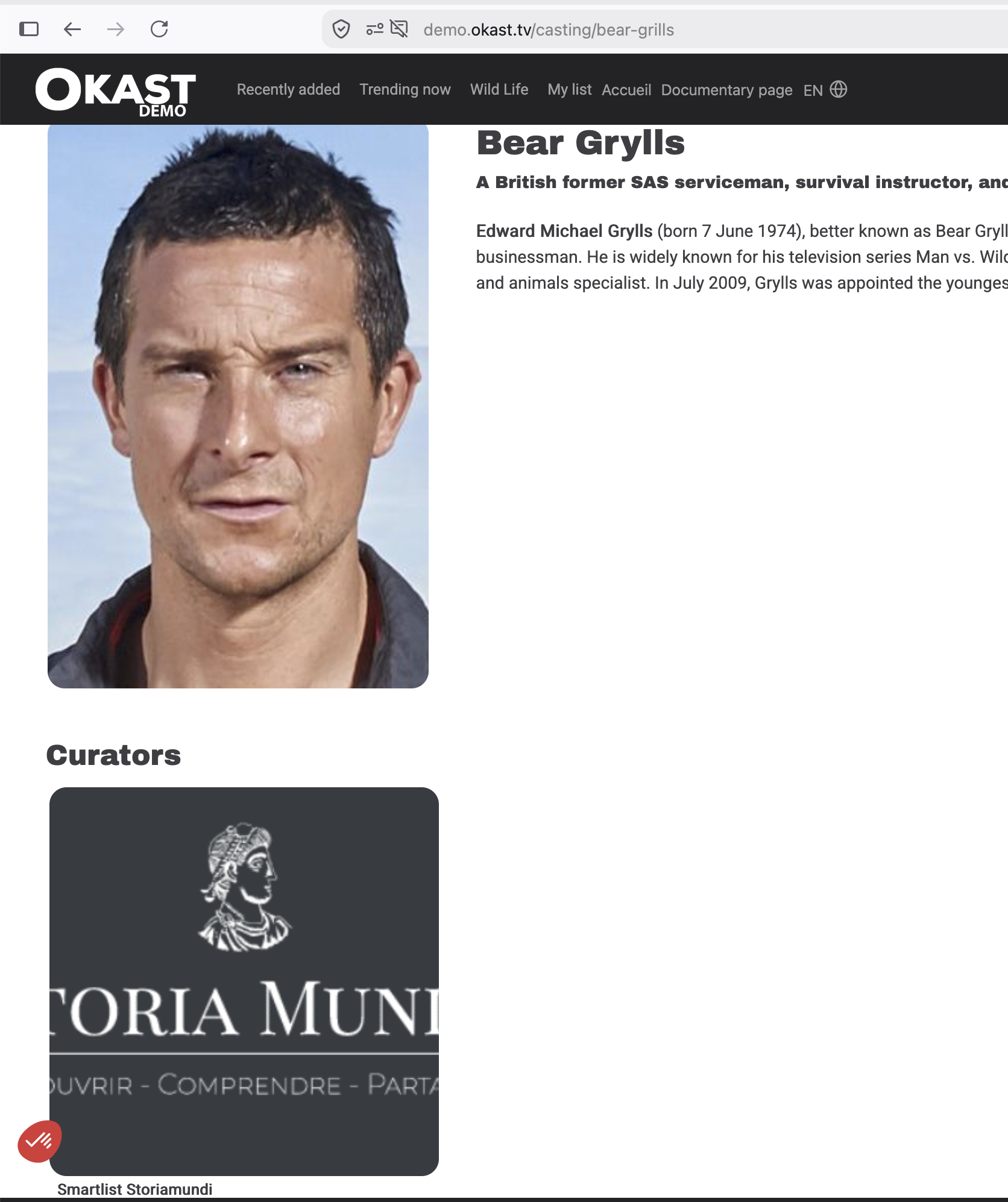
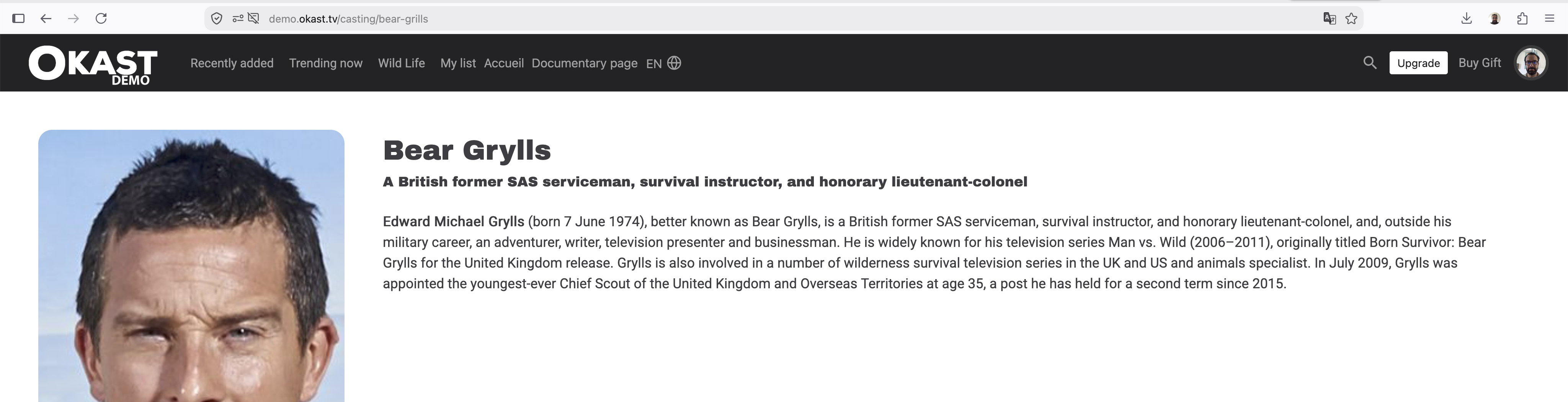
For each of the casting you create, a dedicated page is generated on your platform:
 To start click on the “new casting” button at the bottom left of the screen. The creation / edition page of the casting opens, and you can start fill in all the information…
TABLE OF CONTENTS
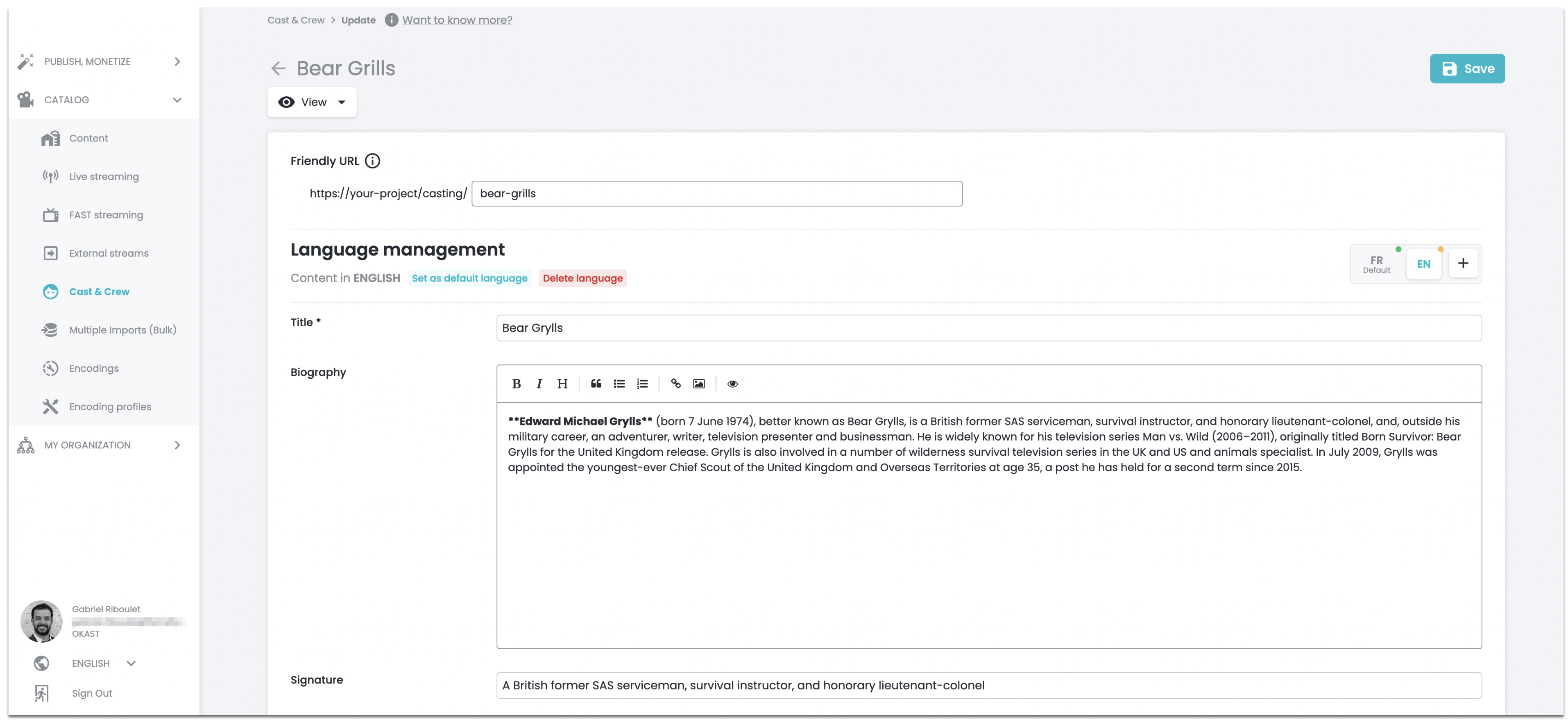
1. The internal title of the casting
Give a title to your casting that will be displayed in your back office.
2. The friendly URL of the casting
The friendly URL is automatically generated from the title given to the content with dashes between each month. This URL will be the one of the content on the platform. You can leave this field empty and a URL will be generated.
For more information on friendly URLs, read our dedicated article.
3. Languages management
Languages in which the casting page is available.
Just like every other page on your platform, casting pages can be translated into multiple languages using the Language Management module.
Add a language: Click “New Language” and select the language you want.
Remove a language. Please note that this will delete all translations you have already entered for that language.
Change the default language if necessary.
4. Name
This is the name that will be displayed of the catsing displayed on your platform. If you use languages that do not have the same alphabet for example, you can enter a different name for different languages. Otherwise, you only have to enter the name in the default language field.
5. Biography
The biography is displayed on the screen of a user only when he goes to the casting page.
6. Signature
A short introductory text to the biography or description.
7. Illustration
If you don't have suitable artwork, you can upload an image that will be automatically resized. To guarantee the best possible experience for your users, whatever their connection and medium, we encode each of your illustrations in 3 formats (low, medium and HD quality).
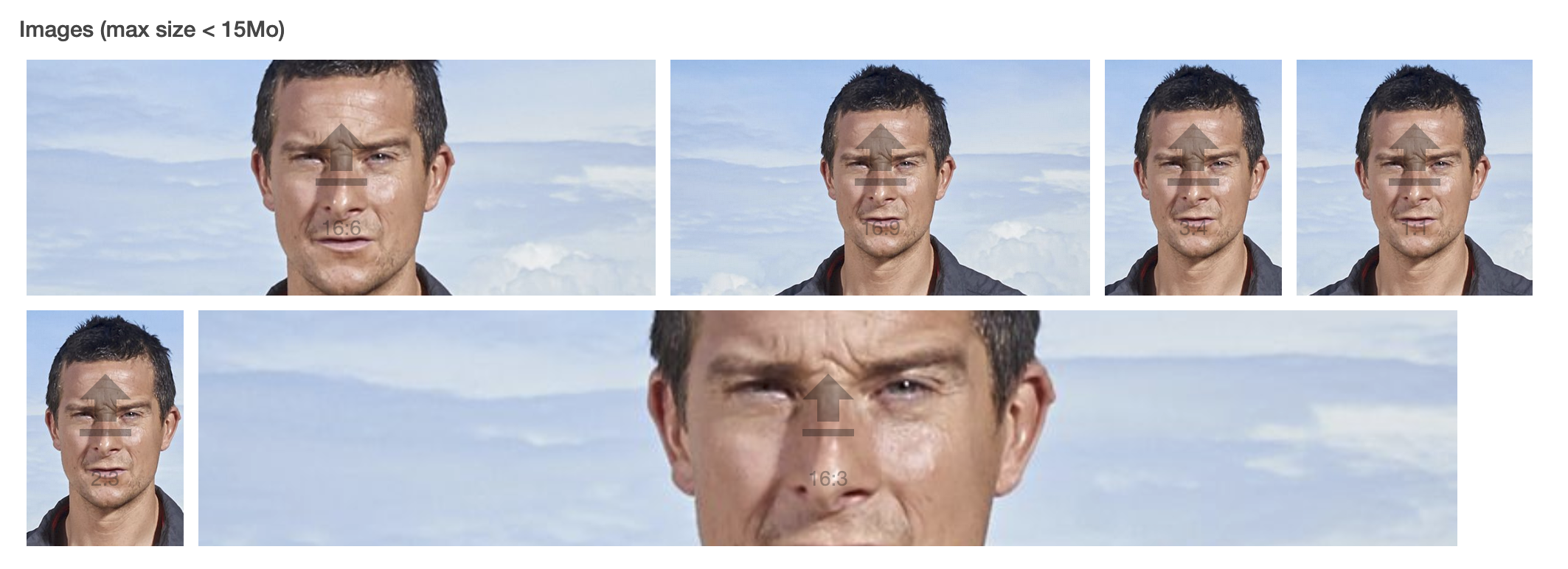
Depending on the design choices made for your platform elements > PLATFORM > Layout, different thumbnail formats may be displayed.
To best control what is displayed to your users, it's ideal to upload all 4 formats: banner, thumbnail, poster and round.
Please note: respect the maximum cumulative limit of 15MB.

8. Filmography / Associated contents
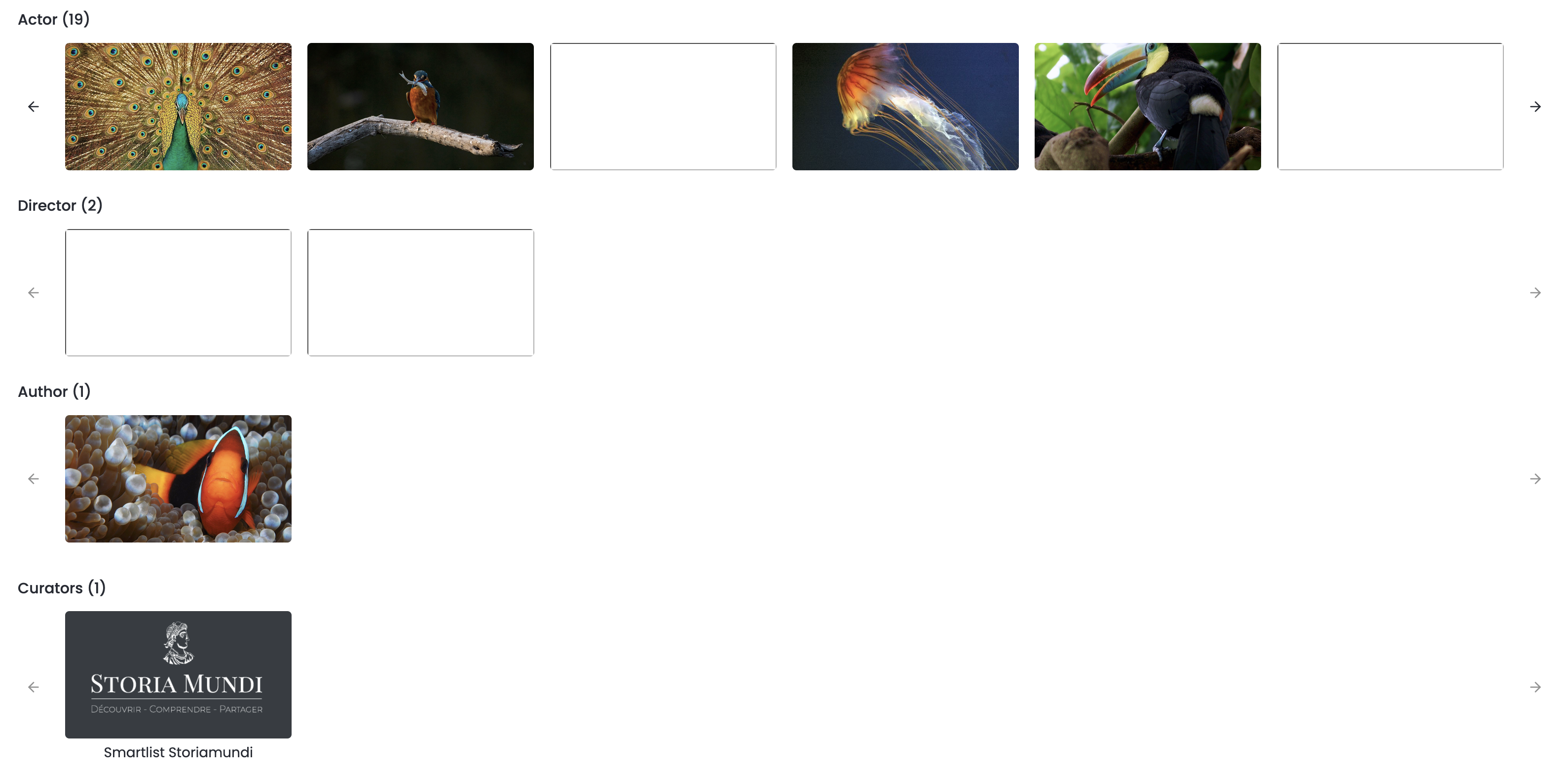
If you have already linked this casting profile to any content (whether as an actor, director, producer or writer), the content linked to this casting will be listed here. To link another piece of content to the profile or remove one, go to the edit page for the relevant content.
9. Variables
The variables are linked to the setting of widgets on your platform. For more information, read our dedicated article.
10. Castings and Smartlists
You can also link Castings to Smartlists.
- Either by adding Castings (in the same way as content) to Smartlists; click here. to find out more.
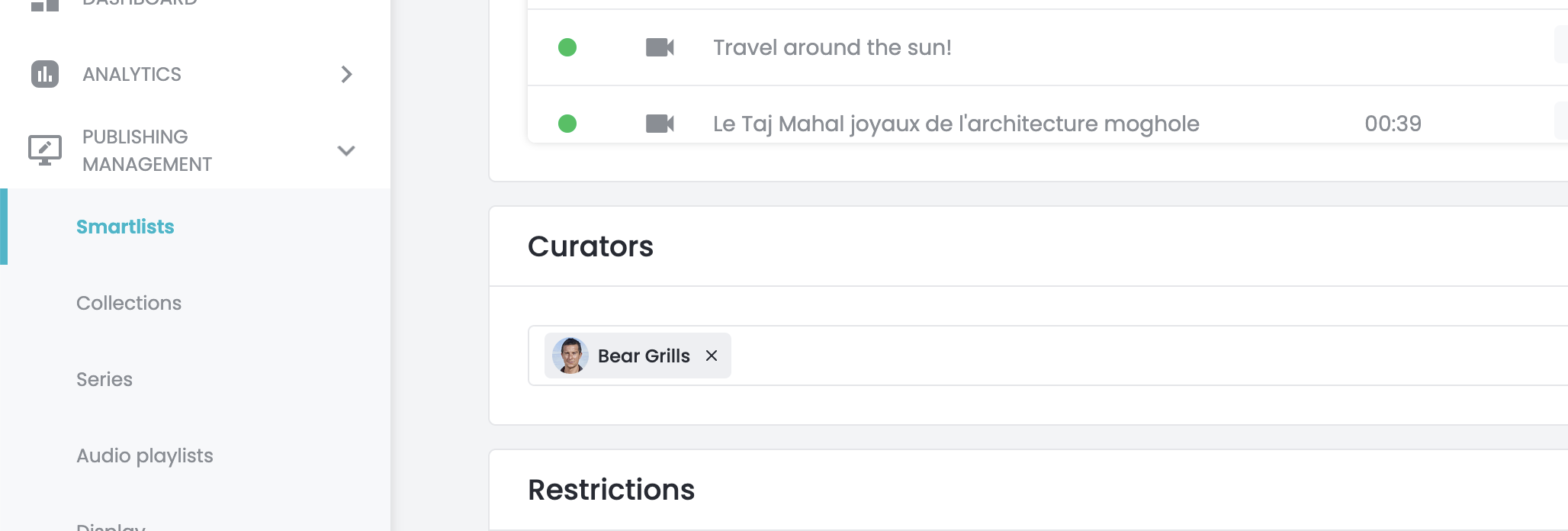
- Or by linking one or more Castings as Editors in a Smartlist.
Go to the Editors field in a Smartlist or click here. to find out more.