With OKAST, you can offer free access to content on your platform. Whether it's full content, an extract (Freemium) or a trailer, it's always important to be able to offer your future customers a sample of your streaming platform.
Like trial periods, free content is a fantastic tool for acquiring new customers and/or subscribers. As we will see here, you can create content that is 100% free (for a trailer, for example), but you can also create content that is free only after registration (for this type of content, see the corresponding article).
How do you set up free content on your platform?
Adding free content to your platform is very simple. Go to the Offer Management > Pricing plans menu, then click on

Fill in the parameters of your offer and add all the content you wish to offer free of charge.
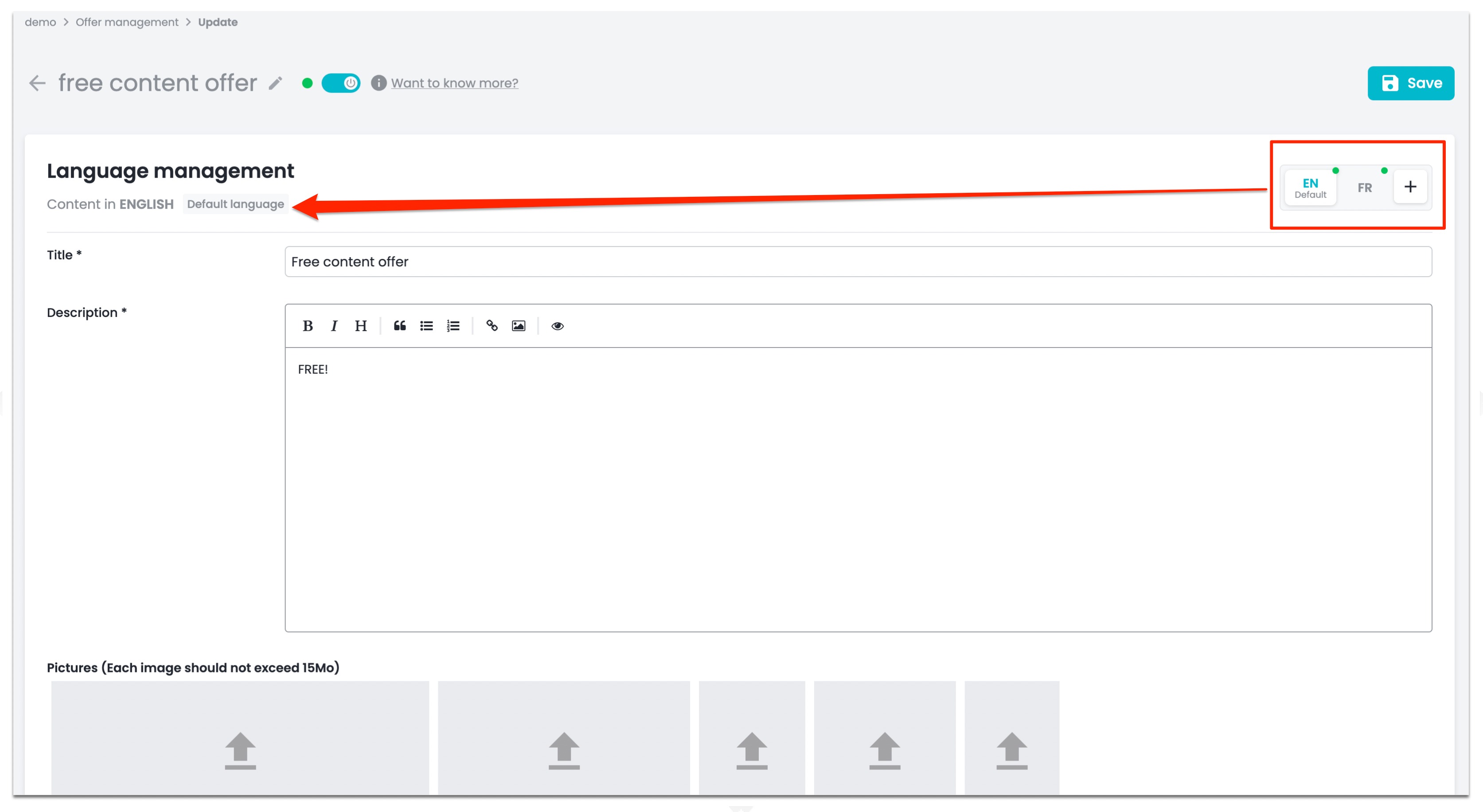
1. Languages management
You can create as many language versions (titles, descriptions, etc.) of your free offer as you like. Please ensure you select the default language carefully.
2. Title and description
You can give your free offer a title and a description of what it contains. The description field can be edited with rich text: you can therefore add formatting (bold, italics, etc.), links or images.
3. Illustrations
You can add an image in several formats: 16:6, 16:9, 3:4, 1:1, 2:3 and 16:3. Each image must not exceed 15MB. If you enable the ‘Gift’ option, this will allow your users to gift the subscription offers you provide.To find out more about > Gift management.
4. Display order
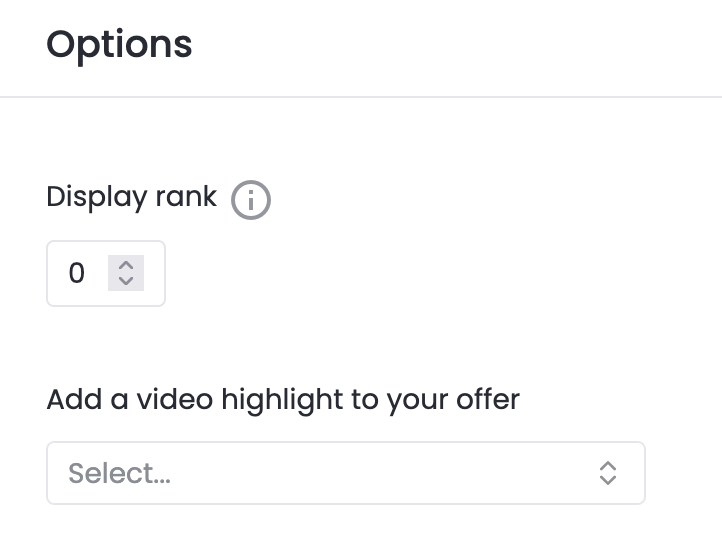
You can prioritise your offers on the platform by assigning them a priority ranking (with 0 being the highest priority).
5. Add a video highlight to your listing
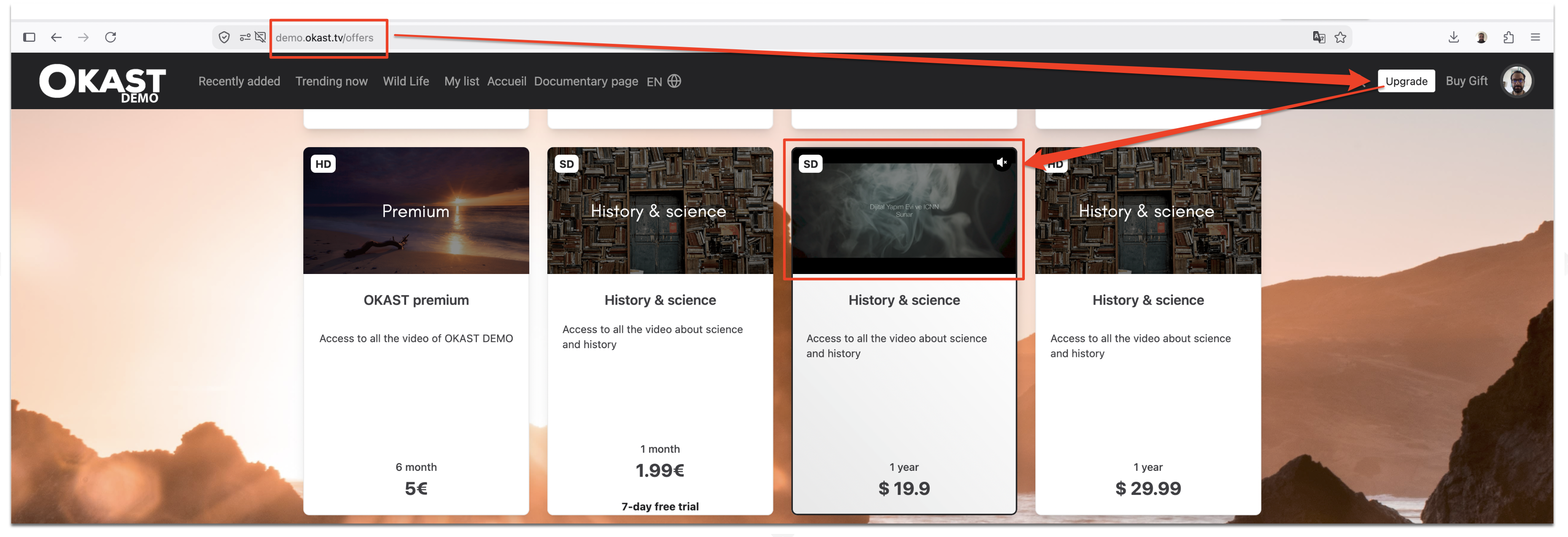
You can highlight free content (such as a trailer) when the user hovers over your listing.
This video will appear on the listing page when the user hovers over it.
6. Items
Add all the content that will appear in your free offer here, either by drag & drop or by multiple addition using the Arrow button. All users who subscribe to this offer will have access to the content added in the right-hand panel. You can therefore add video and audio content to your offer.

7. Pricing
At the bottom of the page, in the pricing section, you can create 3 types of offer: Subscription, Sale and rental and, lastly, Free.
In the Free section, click on the + New button  and select the options for configuring your free offer:
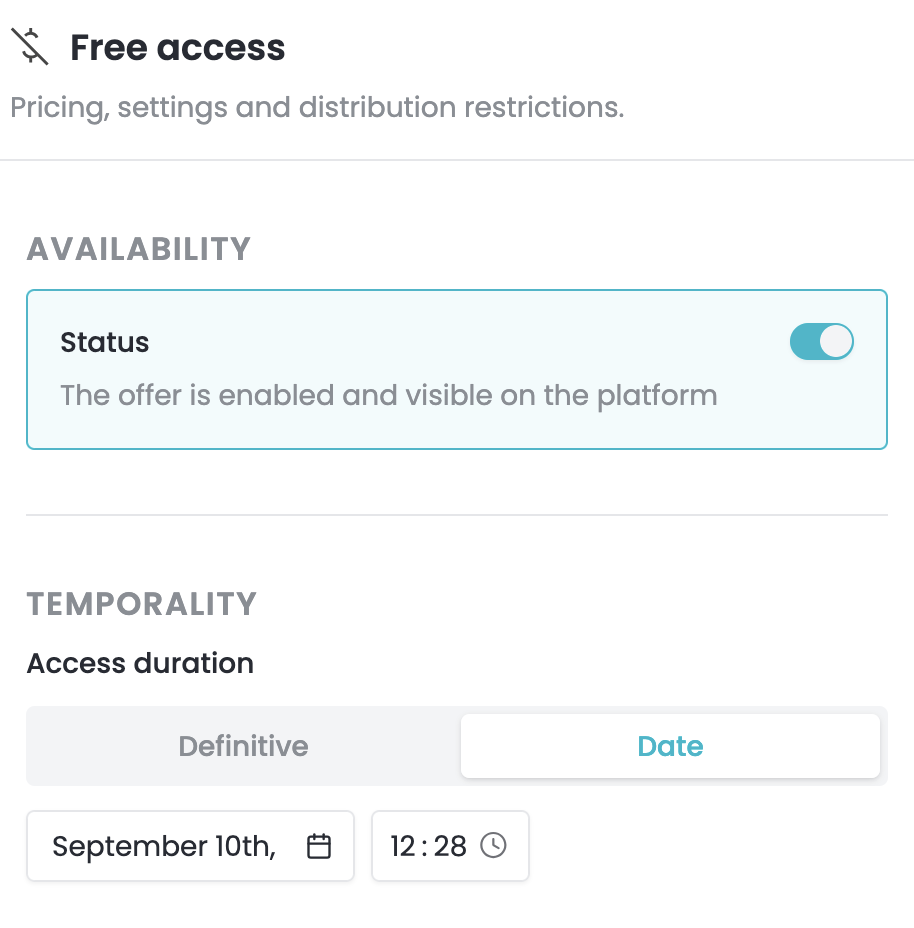
a. Availability
If the offer’s status is set to ‘deactivated’, it will no longer appear on the offers page, but will remain stored in your back office.
b. Timeframe
Duration of access: you can choose between a duration that is unlimited in time, i.e. permanent, or a specific date and time. You cannot choose a period.
c. Parameters
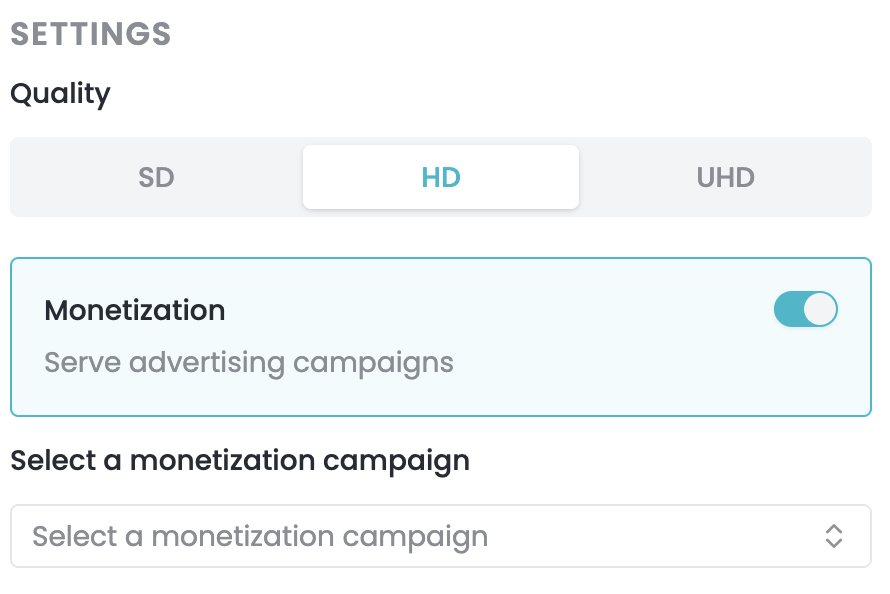
Resolution: you can offer different qualities of your content for the free offer: SD, HD and UHD (4K).
If you set HD, your customers will have access to all lower quality content: SD and HD.
Monetisation allows you to select a monetisation campaign. This means that your content will feature adverts. For more information on setting this up, go to => Create an advertising or self-promotion campaign
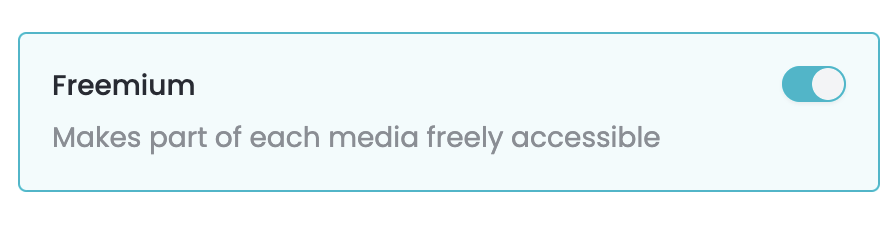
The freemium model makes part of your content available for free. To activate it, you must:
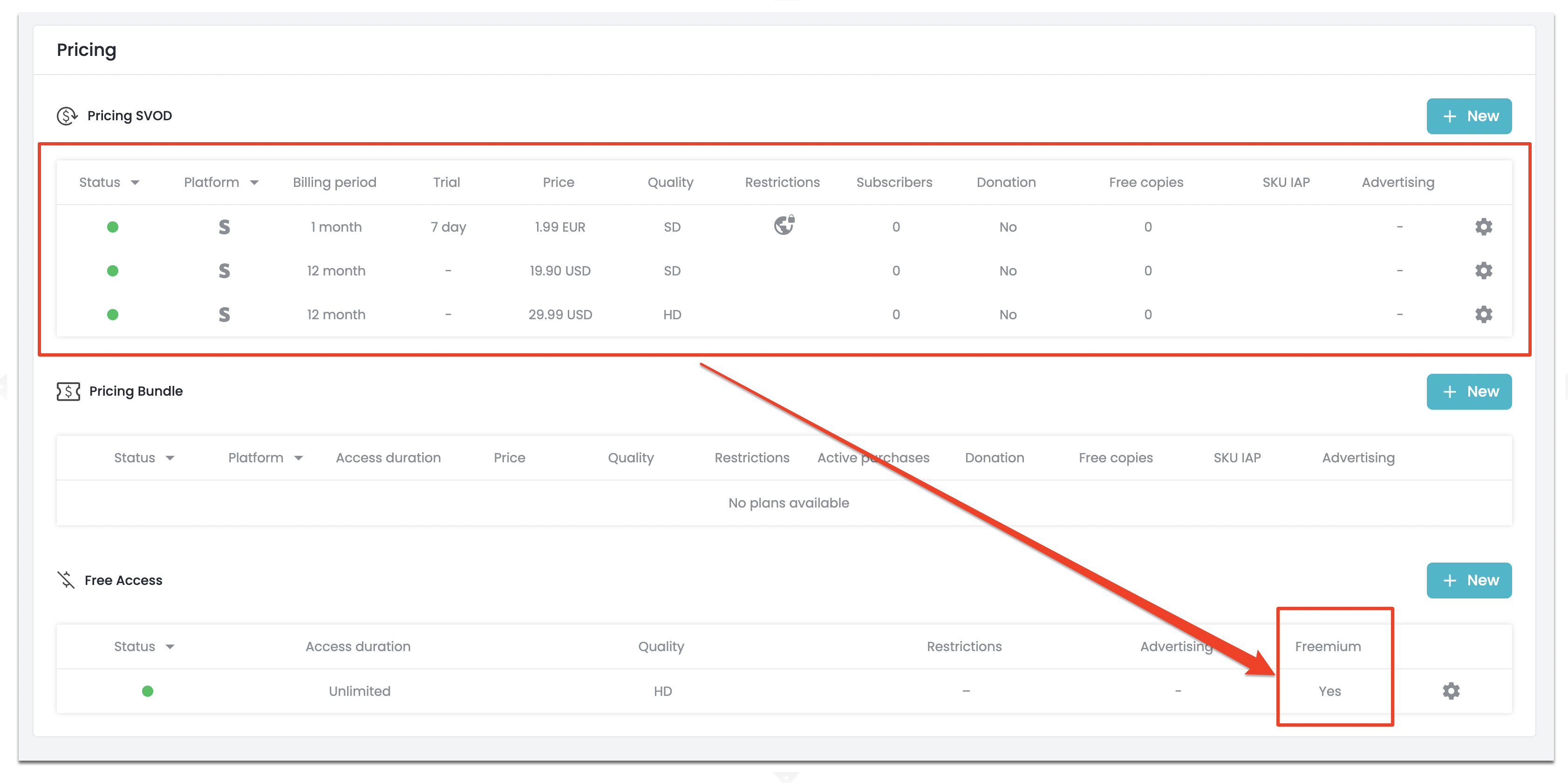
- Implement the freemium model alongside a paid pricing plan. In other words, your offering includes both a paid pricing plan and a free option with the freemium model active.
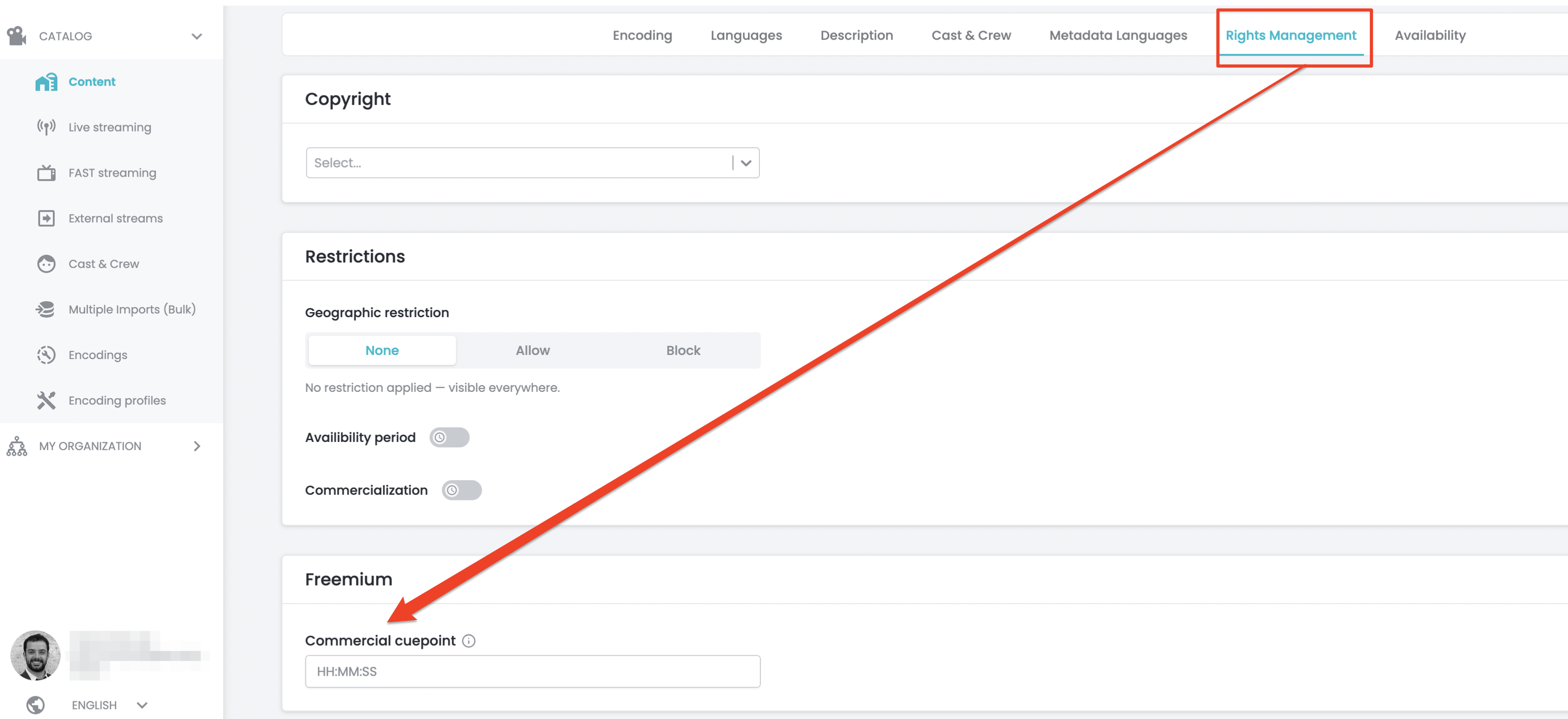
- Set the viewing duration for the content that will be free with the commercial marker. For each piece of content in your offer, you must specify which part is free. Go to the ‘Rights Management’ tab for a piece of content > ‘Freemium’ and enter the duration in HH:MM:SS or HH:MM:SS:FF (frames) or HH:MM:SS:sss (milliseconds).
d. Restrictions
With the user account option, you can restrict access to content for unregistered users and thereby collect information such as email addresses, reading time, usage, etc. To do this, select the option. Otherwise, leave access open and without registration (greyed out).
Please note: if you enable the user account registration option, you must also enable the Ask for an account before displaying accounts option in the Platform > Configuration menu; otherwise, users will be redirected to the offer page immediately after registering.
Trailers never require authentication.
Geographical restrictions allow you to manage which countries have access to your free offers. If you authorise the offer in a country or group of countries, this means by default that all other countries are blocked.
Finally, please note that you can add multiple pricing options for the same offer. In this example, the free pricing option: the first line is unlimited with no geographical restrictions, whilst the second is not.

Please note:
Free content can be recognised on your platform by the FREE icon, which can be activated in the PLATFORM > Configuration > Label configuration menu.
